

Setting up and configuring your Business Phone Number
Your Business Phone Number is managed from your InterProWebHost client area. Open Phone Numbers in your account to see your number, its plan, its renewal date, and its recent calls.
1. Choose where your calls ring (forwarding)
Your number forwards its calls to one regular phone number, for example your mobile. Callers dial your business number, and your phone rings.
- When you order, tell us the number you want calls forwarded to, or send the request from your number’s page in the client area, and we will set it for you.
- You can change the forwarding destination at any time the same way. There is no charge for changing it.
- To know a call is a business call, your phone shows the caller’s number when your business line rings.
Best practice: after any change, place a test call to your business number from a different phone and confirm your phone rings.
2. Set your caller ID name
Your caller ID name is the name that can appear on other people’s phones when you call them, for example your business name.
- Set it under your number in the client area.
- Keep it to 15 characters or fewer.
- Set it early. The name is registered with the carrier databases, and it can take time to appear everywhere. Whether the name shows at all is decided by the phone company of the person you are calling, so some callers will see only your number.
3. Text messaging
Texting is an optional add-on for your number. Once it is switched on:
- You switch texting on or off under your number in the client area.
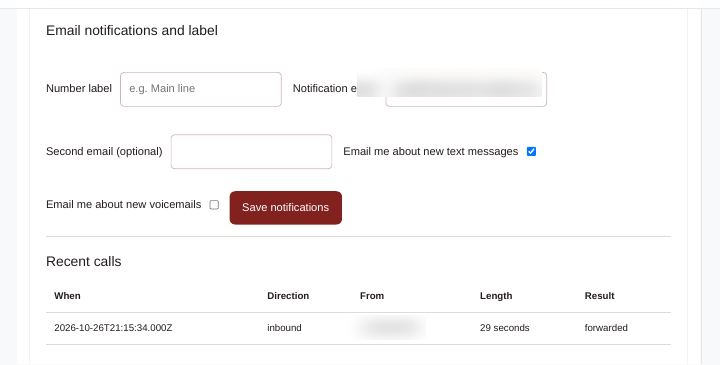
- Texts sent to your business number do not arrive as ordinary text messages on your mobile phone. Instead, turn on email notifications for texts in your client area and choose the email address they should go to. You can add a second address as well.
- Activation is usually completed the same day, but it can take longer, so switch texting on before the day you need it.
4. Voicemail
If a forwarded call is not answered, callers can leave a voicemail.
- Turn on email notifications for voicemail in your client area so new voicemails reach your inbox.
- You can review your recent calls, including missed calls, under your number in the client area.
5. Best practices
- Do not rely on your business number as the only way to receive verification codes. Some banks and services will not send one-time passcodes (OTP) or multi-factor authentication (MFA) codes to virtual business numbers, and delivery is never guaranteed. Keep your personal mobile number as the verification number for critical accounts, and use your business number for everyday calls and texts.
- Turn on email notifications for both texts and voicemail so nothing sent to your business number is missed.
- Set your caller ID name first. It takes the longest to take effect across carriers.
- Test after every change. One call and one text after setup tells you everything is working.
- Keep your forwarding destination current. If you change your mobile number, tell us so your business calls keep reaching you.
6. Cancelling your number
You can request cancellation from your number’s page in the client area.
- Choose Immediate cancellation or cancellation at the end of your paid period.
- Your number keeps working until the cancellation takes effect. It is then released and cannot be recovered afterwards, so be sure before you confirm.
- Number purchases are final, and the monthly service is not refundable once billed. Cancelling simply stops the next renewal.