1. Log in to your cPanel account.
2. In the Databases section, click on MySQL Databases.

3. Under Current Databases, you can see a list of all your databases. Locate the database you want to remove and click on Delete.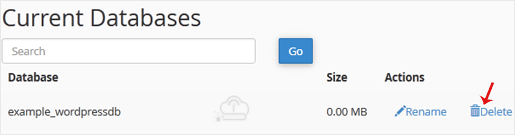
4. Click on Delete Database.
Search the support library or follow the guide below.
1. Log in to your cPanel account.
2. In the Databases section, click on MySQL Databases.
3. Under Current Databases, you can see a list of all your databases. Locate the database you want to remove and click on Delete.
4. Click on Delete Database.